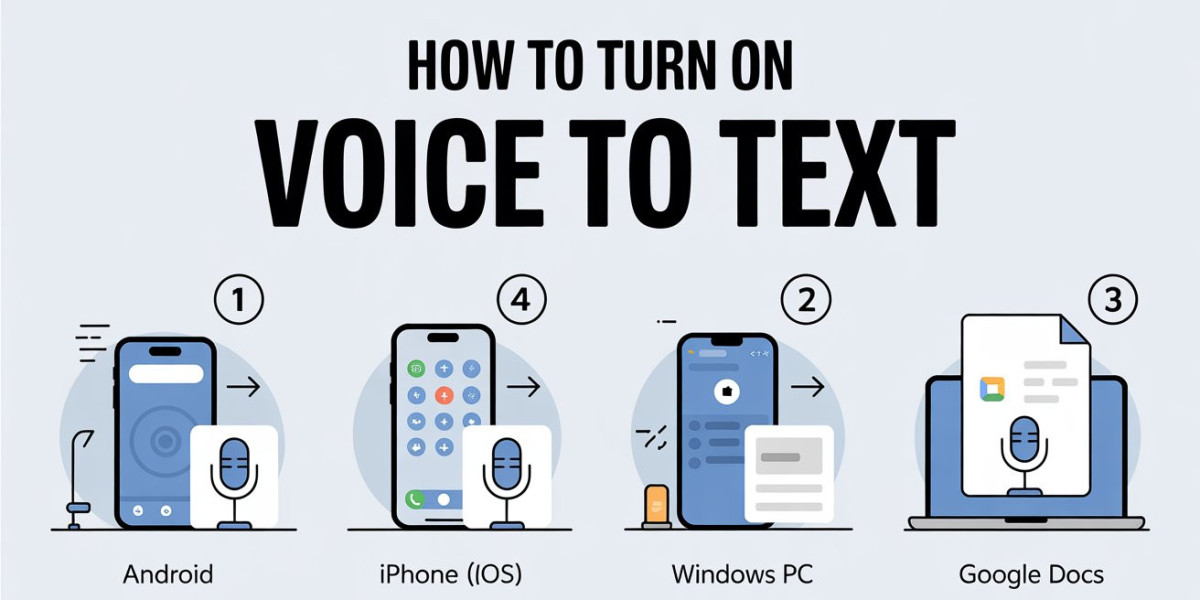

Typing on a smartphone can slow you down, especially when you need to reply quickly or write long content. Android solves this problem with powerful built-in voice-to-text features that turn speech into words instantly.
This guide explains how to convert voice to text on Android , using native tools and reliable methods that work for daily messaging, notes, and professional tasks.
What Is Voice to Text on Android and How It Works
Voice to text on Android uses speech to text and speech recognition technology to convert spoken words into written text. It relies on machine learning models trained to understand accents, languages, and natural speech patterns.
When you speak, your voice is processed in real time and transformed into text through speech to text systems inside apps like messaging, email, and note-taking tools.
What You Need to Use Voice to Text on Android
Before starting, ensure your Android device is properly set up. Most modern phones already meet these requirements.
Basic Requirements for Android Voice Typing
An Android phone running Android 8 or higher
Gboard or a compatible keyboard installed
Internet connection for best accuracy
Microphone permission enabled
These basics allow voice typing to work smoothly across apps.
How to Enable Voice Typing on Android Step by Step
This section explains how to activate voice typing if it is not already enabled on your device.
Steps to Turn On Voice Typing in Android Settings
Open Settings on your phone
Tap System → Languages & input
Select On-screen keyboard → Gboard
Enable Voice typing
Once enabled, the microphone icon will appear on your keyboard.
How to Convert Voice to Text Using Gboard on Android
Gboard is the most common and reliable way to convert voice to text without typing.
Using the Microphone Icon for Voice Typing
Open any app with a text field
Tap the text box to open Gboard
Tap the microphone icon
Speak clearly and naturally
Your speech appears as text instantly, with punctuation support.
How to Use Google Assistant for Hands-Free Voice to Text
Google Assistant allows you to convert voice to text without touching the keyboard.
Voice Commands That Convert Speech to Text
You can say commands like:
“Hey Google, type a message”
“Write a note”
“Send a WhatsApp message”
This method is ideal when your hands are busy or you need quick dictation.
How to Convert Voice to Text in Google Docs on Android
For long-form writing, Google Docs offers an efficient voice typing experience.
Voice Typing for Long Content Creation
Open the Google Docs app
Create a new document
Tap the microphone icon on the keyboard
Dictate your content clearly
This method works well for articles, assignments, and meeting notes.
Benefits of Converting Voice to Text on Android
Voice to text is more than a convenience. It improves productivity and accessibility.
Key benefits include:
Faster text input than typing
Reduced strain on fingers and eyes
Helpful for seniors and accessibility needs
Supports multiple languages and accents
It also helps users focus on ideas instead of keyboards.
Accuracy Tips for Better Voice to Text Results on Android
Voice recognition works best when used correctly.
Simple Tips to Improve Speech Recognition Accuracy
Speak at a normal pace
Use clear pronunciation
Dictate punctuation like “comma” or “period”
Reduce background noise
These small habits greatly improve text accuracy.
Common Problems With Android Voice to Text and Fixes
Sometimes voice typing may not work as expected.
Fixes for Voice Typing Not Working on Android
Check microphone permissions
Update Gboard from the Play Store
Restart your phone
Verify language settings
Most issues are resolved within minutes.
Voice to Text on Android vs Traditional Typing
Voice typing and manual typing serve different purposes.
| Feature | Voice to Text | Manual Typing |
|---|---|---|
| Speed | Faster | Slower |
| Effort | Minimal | High |
| Accuracy | High with clarity | Depends on typing skill |
| Accessibility | Excellent | Limited |
Voice input clearly wins for speed and ease.
FAQ: How to Convert Voice to Text on Android
How to convert voice to text on Android without typing at all?
Use Gboard microphone or Google Assistant to dictate text fully hands-free.
Does voice to text on Android work offline?
Limited offline support exists, but online mode gives better accuracy.
Is voice typing free on Android devices?
Yes, Android voice typing is completely free.
Can Android voice to text support Hindi and other languages?
Yes, it supports multiple languages including Hindi and regional options.
Why is my Android voice typing inaccurate?
Background noise, unclear speech, or wrong language settings reduce accuracy.
Which apps support voice to text on Android?
Messaging apps, Google Docs, email apps, and note apps support it.
Is voice to text safe and private on Android?
Google follows strict privacy standards for voice data processing.
Can I use voice to text for professional writing on Android?
Yes, many professionals use it for emails, notes, and content drafts.
Converting voice to text on Android saves time, boosts productivity, and makes smartphones easier to use. Once you start dictating, typing feels optional rather than necessary.